






You invested in a high-end 4K laser projector to get a true cinema feel at home. You start a blockbuster, expecting brilliant colors and dazzling highlights — but instead the picture looks unexpectedly dark. Shadow details are barely visible, and bright clouds appear as featureless white blobs.
Frustrated, you search the settings and come across the term Dynamic Tone Mapping. In forums some “purists” advise turning it off for a more natural image. Others strongly recommend enabling it.
The truth is: most online advice refers to OLED TVs, not projectors.
In this guide we explain, with technical grounding, exactly what Dynamic Tone Mapping (DTM) does, why it’s often crucial for ultra-short-throw projectors (UST), and how to set it optimally for movies and gaming.
What is Tone Mapping? (Explained simply)
Before we talk about “dynamic,” we need to understand the basic problem.
HDR films (High Dynamic Range) are mastered in studios on reference monitors that can reach extreme brightness levels — often 1,000, 4,000 or even 10,000 nits (cd/m²). Most home cinema projectors (and many TVs) cannot physically reproduce these peak brightnesses.
If your projector displayed the signal unchanged, you would get so-called clipping: Everything brighter than the projector’s maximum output would simply be shown as pure white. Cloud structure or detail in an explosion would be lost.
Tone Mapping acts as the “interpreter” here. It translates the film’s extreme brightness range so it fits into the displayable range of your projector. The goal is to preserve detail in both the brightest highlights and the deepest shadows as well as possible.
Basic knowledge: Still unsure about the difference between older TV standards and the new technology? Read our guide on SDR vs. HDR in the home cinema.
The problem: Why does HDR often look too dark?
The most common criticism of HDR projection is a subjectively too-dark picture. This is often due to the way tone mapping is done.
Static Tone Mapping (The old standard)
The standard format HDR10 uses static metadata (e.g., MaxCLL and MaxFALL) that apply to the entire film. The projector must derive a single tone-mapping curve for the whole runtime from this.
- The downside: The projector has to compromise. If it optimizes the curve for a very bright beach scene, a dark cave scene later in the film will often be rendered too dark. The picture feels weak.
Dynamic Tone Mapping (The modern solution)
Dynamic Tone Mapping (DTM) works smarter. It continuously adjusts the tone-mapping curve — often scene by scene or even frame by frame (depending on the manufacturer).
- The advantage: It’s like readjusting the brightness control for every moment. In dark scenes the curve is tweaked to reveal shadow detail; in bright scenes it’s corrected to avoid blown highlights.
Important note: For formats like Dolby Vision or HDR10+ dynamic metadata is already provided to guide tone mapping. The projector doesn’t have to “guess” but follows defined guardrails. Tone mapping still occurs to adapt the image to the hardware.
The “projector factor”: Why TV tips often don’t apply here
In many hi-fi forums you’ll read: “Turn off dynamic picture enhancers so the image isn’t distorted.”
This advice is usually correct for OLED TVs in completely dark rooms. For projectors it is often counterproductive in practice.
A projector doesn’t emit light like a TV; it projects reflected light onto a 100 to 150-inch screen. This means the luminance (cd/m²) across the large surface is physically lower than that of a TV device.
Without Dynamic Tone Mapping, HDR on the large screen often appears too dark because the projector holds back brightness headroom for highlights it can barely reproduce. DTM in projectors is therefore often not a “artificial effect” but a necessary compensation, to preserve perceived image impact and detail.
Gaming special: HGiG or DTM?
Gamers often face a dilemma: maximum visibility (to see enemies in dark corners) or maximum signal fidelity?
Option 1: Dynamic Tone Mapping (DTM)
- Pro: Actively brightens shadow areas and provides a contrast-rich image. Ideal for gaming in rooms with ambient light or for competitive shooters.
- Con: Because the projector performs image calculations, this can — depending on the model and mode — increase input lag (response delay).
Option 2: HGiG (HDR Gaming Interest Group)
HGiG aims for the display to largely disable its own tone mapping and rely on the HDR calibration of the console.
- Pro: High signal fidelity and often lower input lag because less image processing occurs.
- Con: On projectors the image with HGiG often appears darker than desired because many games are primarily optimized for brighter TV displays.
Practical example: Dolby Vision gaming
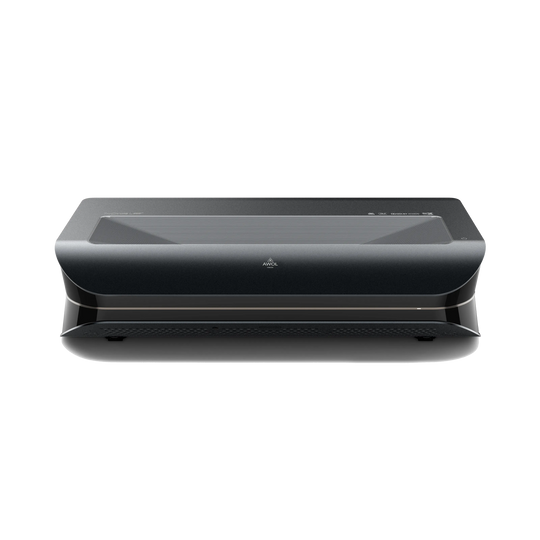
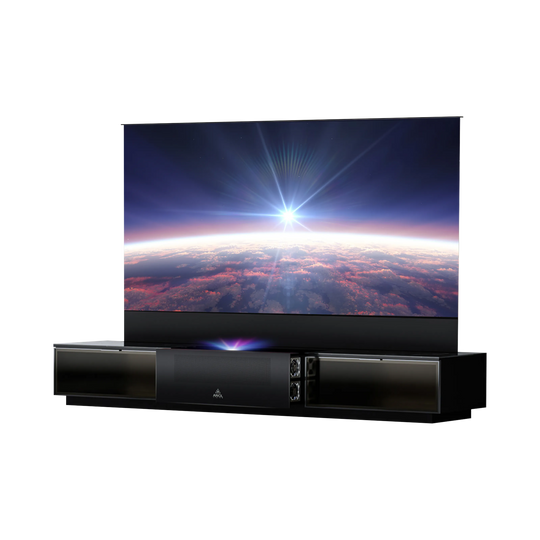
Some modern projectors, like the AWOL Vision Aetherion, support Dolby Vision for gaming (e.g., on Xbox Series X). In this case the console provides dynamic metadata, enabling precise control without aggressive display-side DTM. AWOL quotes input lag for the Aetherion in the corresponding mode in the 1-ms range (at 240 Hz) as well as VRR/ALLM support (manufacturer specs).
The hardware basis: Why software alone is not enough
An algorithm can only work as well as the hardware running it. A DTM algorithm on a low-brightness projector often just yields washed-out gray. For true HDR two physical characteristics are decisive:
- Light reserves (lumens): To make highlights (like headlights or stars) sparkle, the projector needs brightness. The Aetherion Max is specified, for example, at 3,300 ISO lumens (Aetherion Pro: 2,600 ISO lumens), which gives tone mapping more headroom.
- Native contrast: Tone mapping often has to brighten dark areas. If the projector doesn’t have good black levels, black becomes dark gray. A high native contrast (AWOL cites e.g. 6,000:1 for the Aetherion) ensures that brightened shadows retain depth.
Checklist: Optimal settings for your home cinema
To get the best out of your laser projector, we recommend the following basic settings as a starting point:
- Picture mode: Start with Filmmaker Mode or “Cinema”. These usually offer the most neutral color tuning.
- Tone Mapping:
- For HDR10 films: Set “Dynamic Tone Mapping” to ON (or “Medium/High” depending on room brightness).
- For Dolby Vision / HDR10+: This setting is often controlled automatically because the metadata drives the mapping.
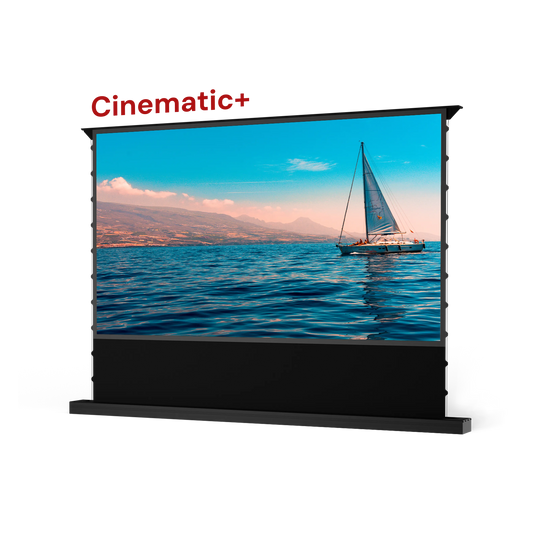
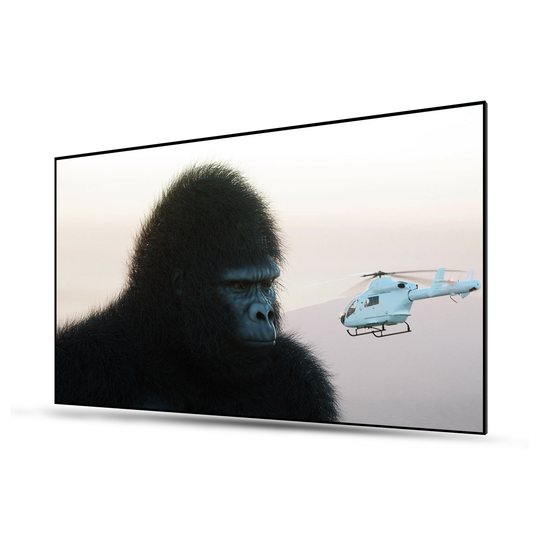
- Screen: HDR benefits massively from a high-contrast screen (ALR/CLR). This improves black level in non-ideal rooms, making tone mapping’s job easier.
Common misconceptions about DTM
- “DTM always distorts the image.” No. For projectors it is often necessary to make the image visible at all (“Visibility over Accuracy”).
- “No tone mapping occurs with Dolby Vision.” It does, but it’s much more precise because it’s controlled by dynamic metadata and not based on the projector’s estimates.
- “More lumens automatically mean better HDR.” Not by itself. Without good contrast and clean tone mapping many lumens just look “milky.”
FAQ: Frequently asked questions about HDR tone mapping
Why is my picture brighter with Dolby Vision than with HDR10?
Dolby Vision uses dynamic metadata. Each scene is tuned to brightness. With standard HDR10 without enabled DTM, the projector often references the brightest values of the entire film, which can unnecessarily dim darker scenes.
Does Dynamic Tone Mapping increase input lag?
Yes, additional image calculations can take time. For gaming, always use your projector’s dedicated Game Mode which disables unnecessary processing steps (except for the necessary tone mapping).
Which is better: HDR10+ or Dolby Vision?
Technically both work dynamically. Dolby Vision is more widespread (Netflix, Disney+, Xbox). Devices that support both formats (like the Aetherion) offer the greatest flexibility.