

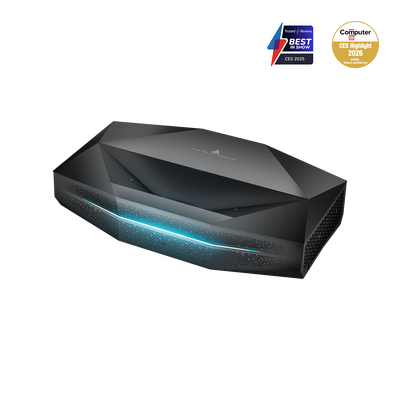


Connecting a laptop to a projector is part of the standard toolkit in meeting rooms and home theaters. However, different ports, adapters, and operating system settings often lead to problems such as "No signal", distorted resolutions, or missing sound.
This guide explains the technical basics, walks you step by step through setup on Windows and macOS, and shows solutions to common error scenarios.
(Note: If you want to connect a smartphone instead of a notebook, read our separate guide on Connecting a projector to a phone.)
1. The interfaces: Check the hardware requirements

Before you make any software settings, the physical connection has to be right. The quality of the transmission depends largely on the standard used — especially if you want to get the full quality of a modern 4K projector value.
HDMI (the standard)
Most projectors use HDMI as their main input. But not all cables are created equal:
- HDMI 1.4: Enough for Full HD (1080p).
- HDMI 2.0 / 2.1: Essential for 4K resolution and HDR content.
- Note: If you are using a modern Laser TV, you should use a certified "Premium High Speed" or "Ultra High Speed" HDMI cable. Older cables often cannot handle the data rate of 4K at 60Hz. This is especially important if you want to display SDR vs HDR content correctly.
USB-C and Thunderbolt
Modern Ultrabooks and MacBooks often do not have a dedicated HDMI port. In that case, the image output runs over USB-C (DisplayPort Alt Mode) or Thunderbolt.
- Direct connection: If the projector has a USB-C video input, a matching USB-C cable is enough.
- Adapter (dongles): Most often, a USB-C to HDMI adapter is needed. Important: When buying, make sure the adapter supports 4K 60Hz . Cheap adapters often limit output to 30Hz, which leads to jerky mouse movement.
2. Instructions: Connecting a Windows laptop
Windows 10 and Windows 11 offer a built-in projection feature that works without external software.
Step by step:
- Connect the laptop and projector with the HDMI cable.
- Select the correct source on the projector, e.g. HDMI 1.
- Press the keyboard shortcut [Windows key] + [P].
A projection menu opens on the right side of the screen with four options:
- PC screen only: The projector stays black.
- Duplicate: Laptop and projector show the same image. Ideal for presentations, but it often scales the resolution down.
- Extend: The projector acts as a second, independent monitor. You can simply move windows (e.g. the video player) to the right onto the screen.
- Second screen only: The laptop goes black, and the image is output only on the projector. Recommendation: This mode is best suited for home cinema, since the graphics card sends full performance exclusively to the projector. If you're wondering Projector or TV — with this setting, the projector becomes a full monitor replacement.
3. Instructions: Connecting an Apple MacBook
On macOS, detection usually works automatically, but often requires manual adjustment of the scaling.
Step by step:
- Connect the USB-C hub or cable to the MacBook.
- Go to System Settings > Displays.
- Click "Arrange".
- Mirror: Check the box if both screens should show the same thing.
- Extended desktop: Uncheck the box to use the projector as a separate workspace. This is often better for image quality.
Caution with streaming services (HDCP): If you watch Netflix or Disney+ in the browser and get a black image, copy protection is being triggered. A more stable alternative here is to use a streaming stick that plugs directly into the projector. Many ultra-short-throw projectors have a dedicated compartment for this.
4. Special case: Gaming (minimizing latency)
Anyone who wants to play PC games through a projector faces the challenge of so-called "input lag".
- Cable instead of wireless: Never use wireless transmission for gaming.
- Game mode: Switch the projector to "Game Mode". This disables image enhancement algorithms that require processing time.
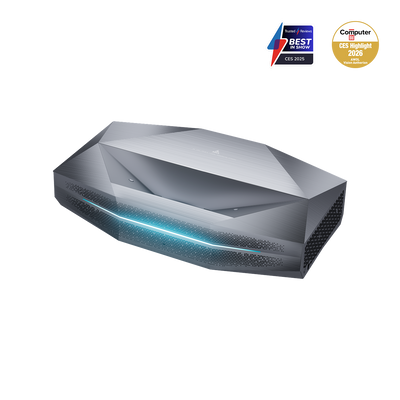
- Technical classification: High-end devices (such as the AWOL Vision Aetherion Max & Pro) reduce latency to as low as 1ms, which is essential for fast shooters.
5. Troubleshooting: Common problems and solutions
Problem 1: There is an image, but no sound Windows does not always switch the audio output automatically.
- Solution: Click the speaker icon in the taskbar at the bottom right. Select the output device at the top of the dropdown menu (often "HDMI Output").
- Note for home cinema systems: If you are sending sound to an external system, make sure you use the connection that supports HDMI eARC , so formats like Dolby Atmos can be transmitted uncompressed.
Problem 2: The image looks blurry or distorted This happens when the laptop sends the projector the wrong resolution.
- Solution (Windows): Right-click on the desktop > Display settings. Select the projector and set the "screen resolution" to the projector's native value (for 4K devices: 3840 x 2160).
Problem 3: The laptop does not detect the projector
- Solution: Disconnect the cable and restart the projector. For USB-C connections, check whether the port used on the laptop actually supports "DisplayPort".